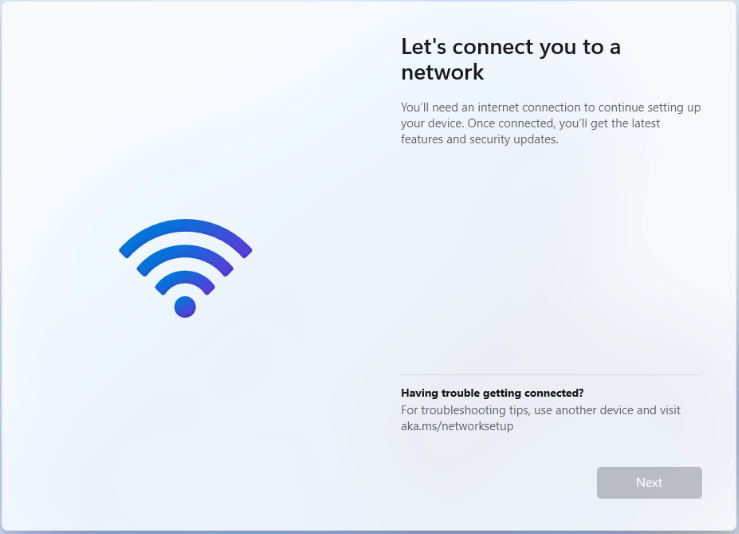
One of the more frustrating parts of installing Windows 11 is reaching the setup screen where Windows asks you to connect to a network before it will let you continue.
On supported editions and newer Windows 11 installation builds, Microsoft increasingly expects the computer to have an active internet connection during the initial setup process. The intention is to connect the machine to Microsoft's services, download updates, install drivers and encourage the use of a Microsoft account.
The problem is that not every installation happens in a situation where internet access is available.
You might be installing Windows on a computer with a missing Wi-Fi driver.
The Ethernet port may not have a network connection.
You may be installing Windows on a machine that is being repaired.
You may simply want to complete the installation first and configure networking later.
Fortunately, Windows Setup has several ways to reach a local setup path when the normal network requirement gets in the way.
THE MOST COMMON METHOD: SHIFT + F10
When you reach the Windows 11 setup screen asking you to connect to a network, press:
Shift + F10
This opens Command Prompt directly from Windows Setup.
Command Prompt is extremely useful during installation because Windows Setup is running before the normal desktop environment has been loaded.
You can use it to access several troubleshooting and configuration tools that are not visible in the graphical installer.
THE OOBE BYPASS COMMAND
In Command Prompt, type:
OOBE\\BYPASSNRO
or
start ms-cxh:localonly
Then press Enter.
Windows should restart the computer automatically.
Do not be alarmed by the reboot. The command is intended to restart the Out-of-Box Experience so that Windows can present the available setup options again.
After the restart, go through the setup process until you reach the network screen again.
You may now see an option such as:
'I don't have internet'
Select it.
Windows may then present another screen explaining the advantages of connecting to the internet. Look for the option to continue with a limited or offline setup.
Select the appropriate option and continue.
WHY THIS WORKS
The command is associated with the Windows Out-of-Box Experience, commonly abbreviated as OOBE.
OOBE is the part of Windows that handles the initial configuration of the operating system after installation.
The BYPASSNRO portion has historically been used to expose the offline setup path when Windows would otherwise insist on network connectivity.
This is not the same thing as activating Windows illegally or bypassing Windows licensing.
You are simply allowing the installation to continue without an internet connection.
IMPORTANT: THE COMMAND MAY NOT WORK ON EVERY NEW WINDOWS 11 BUILD
Windows 11 is continuously changing.
Microsoft has been removing, changing or restricting some of the older methods used to create a local account or bypass network setup.
Therefore, you may encounter a Windows 11 installation image where:
- OOBE\\BYPASSNRO no longer works.
- The command is not recognized.
- The computer restarts but the network requirement remains.
- The offline option does not appear.
If that happens, do not assume that your keyboard or installation media is defective.
The behavior can depend on the Windows version, installation image and build being used.
IF SHIFT + F10 DOES NOT OPEN COMMAND PROMPT
The first thing to check is your keyboard layout.
This is particularly important with non-US keyboards.
On a UK keyboard, for example, the location of certain symbols differs from the US keyboard layout.
However, Shift + F10 itself normally uses the function-key combination and should not depend on finding the slash key.
If the shortcut does nothing, try:
- Fn + Shift + F10 on laptops where function keys are controlled by the Fn layer.
- Connecting a different USB keyboard.
- Checking whether the laptop's function keys are operating correctly.
- Using the on-screen keyboard if available.
THE UK KEYBOARD PROBLEM
One of the most confusing parts of this process is typing commands containing special characters.
The Windows Setup environment may be using a keyboard layout different from the physical keyboard in front of you.
This can make characters such as:
\\
/
:
@
"
appear in unexpected places.
For example, a user with a UK physical keyboard may instinctively press a key expecting one character while Windows Setup interprets that key according to another layout.
If the command appears incorrect on screen, check the actual characters being entered instead of assuming the keyboard is broken.

log in to post a comment.